
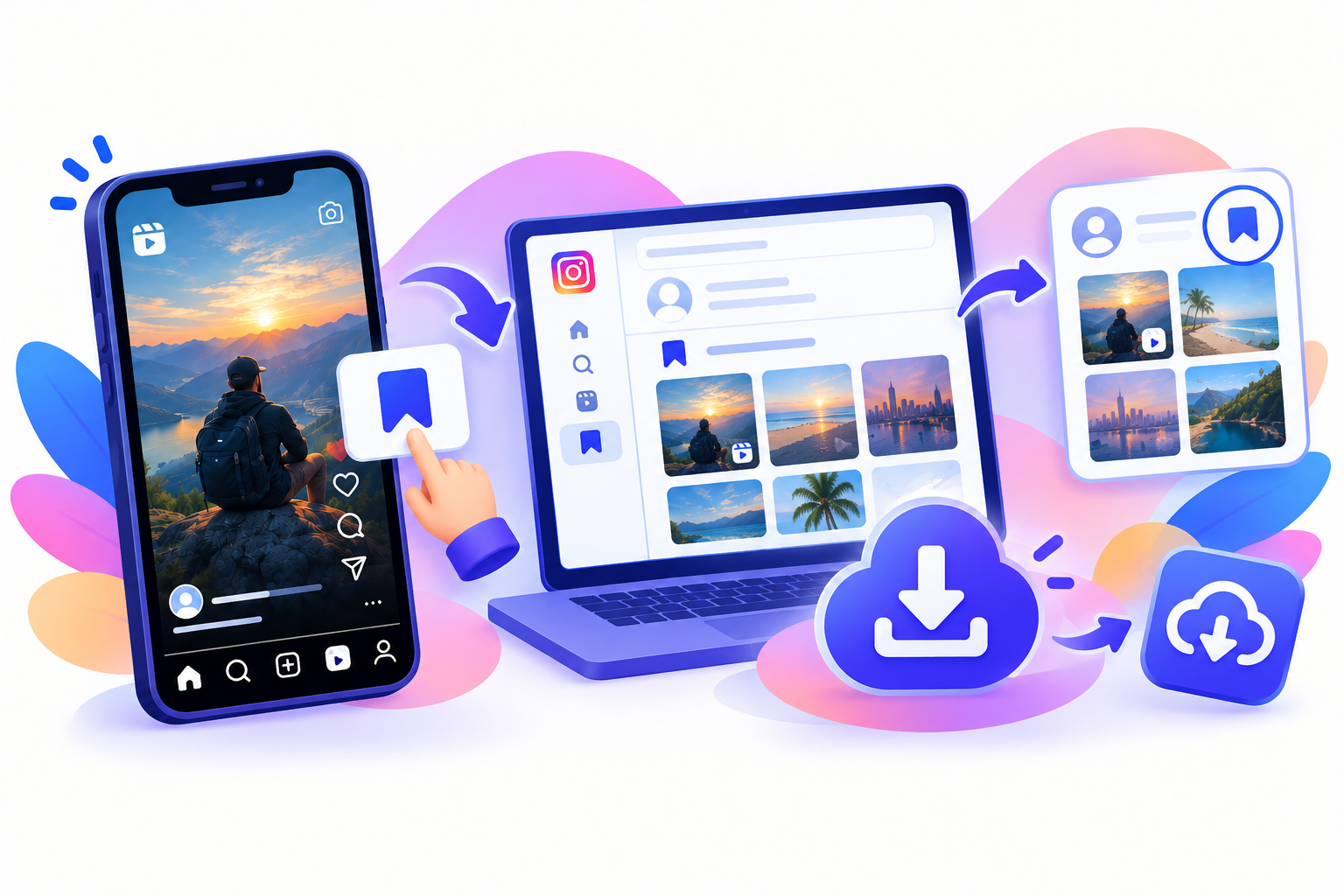
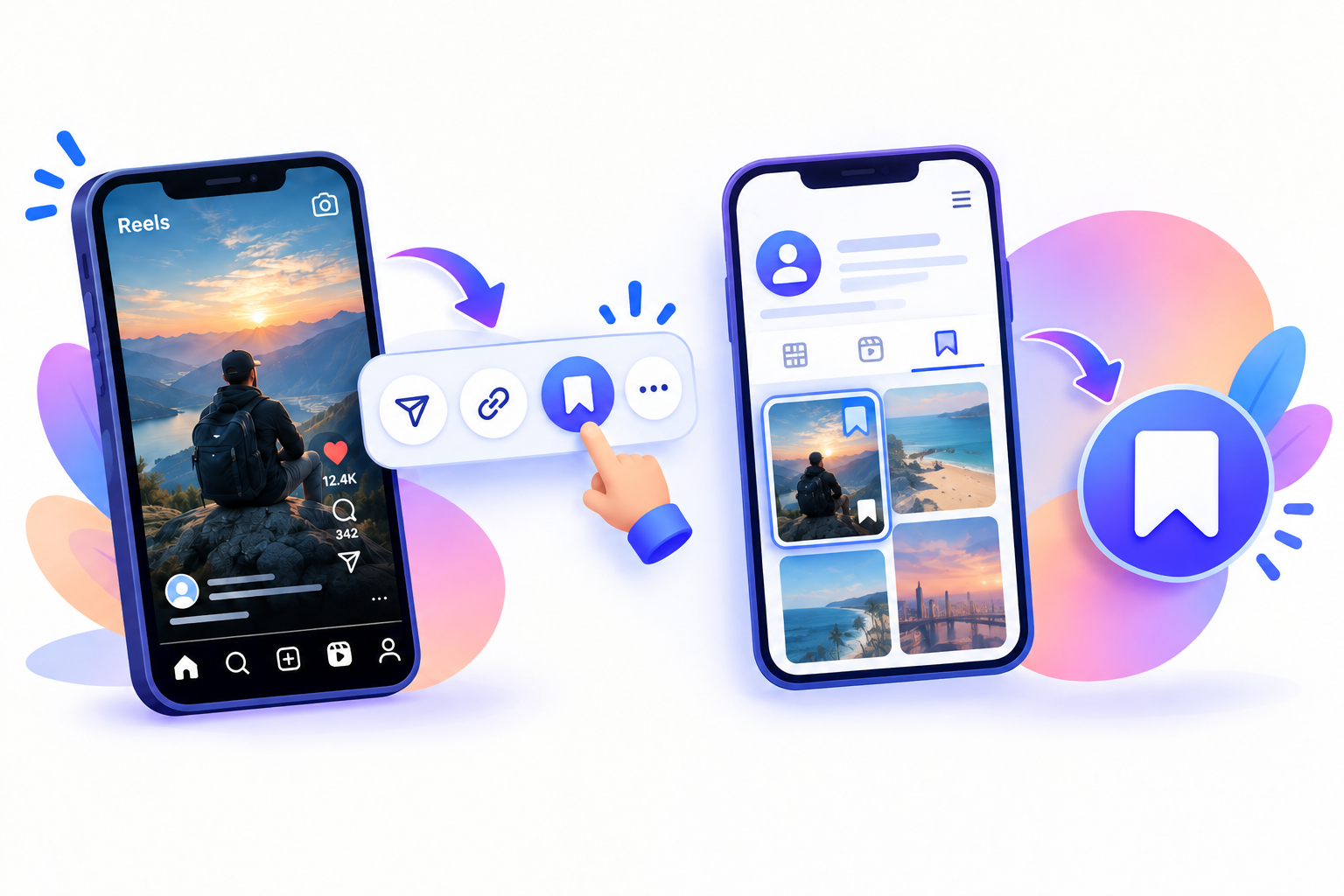
If you want a Reel as an actual video on your iPhone, Instagram’s bookmark button will not get you there. Save keeps a shortcut inside the app. The file still lives on Instagram’s servers, and it can disappear if the creator deletes it.
To download Instagram Reels on iPhone, copy a public Reel link, paste it into SnapPullr in Safari, then move the MP4 into Photos if it did not land there automatically. You do not need a sideloaded app or your Instagram password.
Copy the Reel link
Start in Instagram so you have the exact URL for that Reel, not the creator’s profile.
- Open the public Reel.
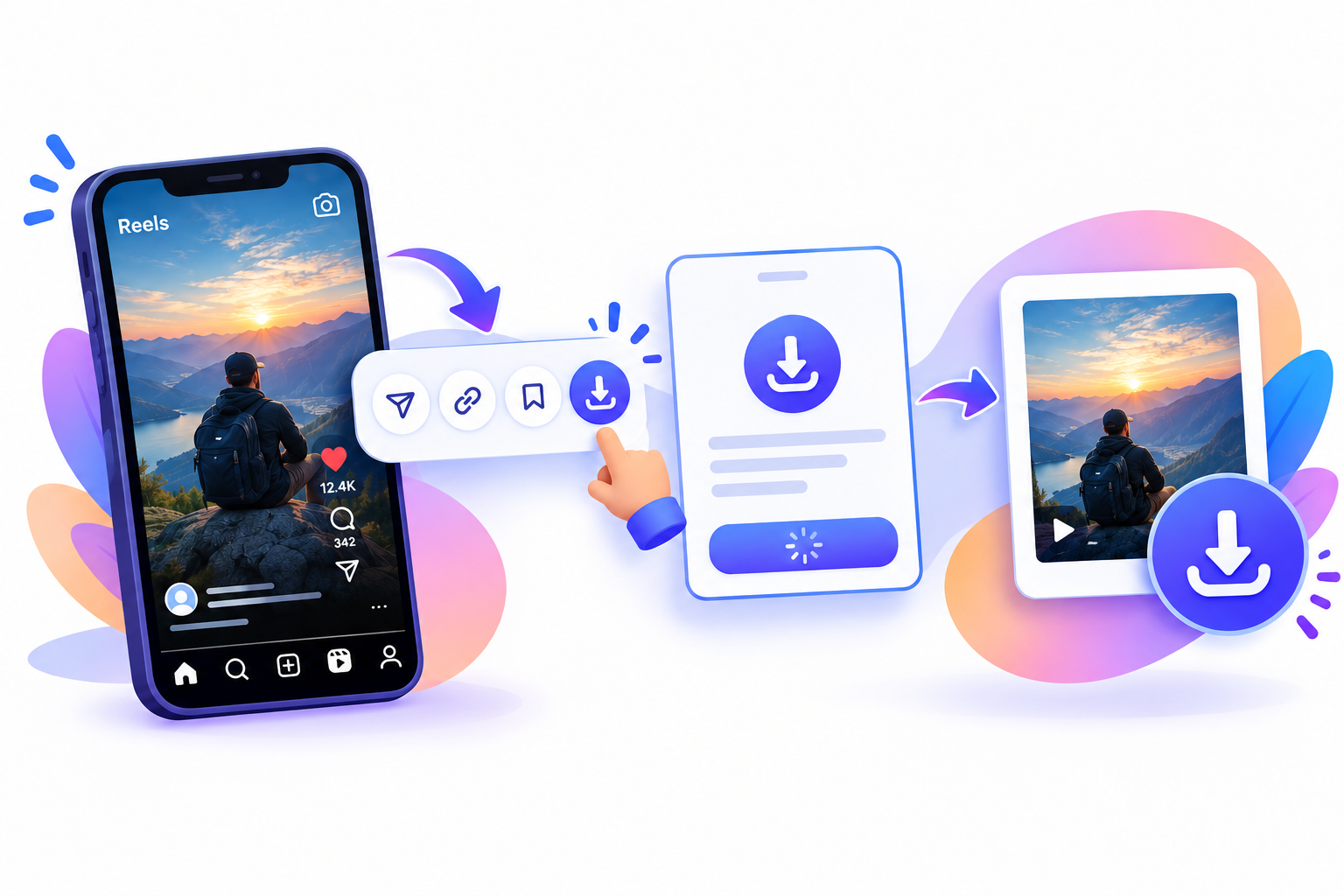
- Tap the paper-plane Share icon (or the three-dot menu).
- Tap Copy Link.
The URL should include reel (or the /p/ form of a Reel shared to the feed). A profile URL alone will not download.
Paste it into SnapPullr
The download itself can happen in Safari. You do not need to install another download app.
- Open Safari (Chrome on iPhone works too).
- Go to the SnapPullr website or the Reels downloader page.
- Paste the URL into the box and start the download.
- If Paste is greyed out, copy the Reel link again.
SnapPullr does not ask for your Instagram login. It only works for content you can already view without special access. Private, deleted, or expired posts will not download.
Save Reels to iPhone camera roll
Safari often puts the file in Downloads, which lives in the Files app, not immediately in Photos.
- Tap the download indicator in Safari, or open Files → Downloads.
- Open the video.
- Tap the Share sheet.
- Tap Save Video.
If Save Video is missing, wait for the download to finish, then try Share again. Once the clip is in Photos, iCloud follows your iPhone backup settings. Saving a file for personal offline viewing is not permission to repost it.